Account settings
Settings gathers everything tied to your account in one place. Open your profile at the top right and choose Settings.
Notifications#
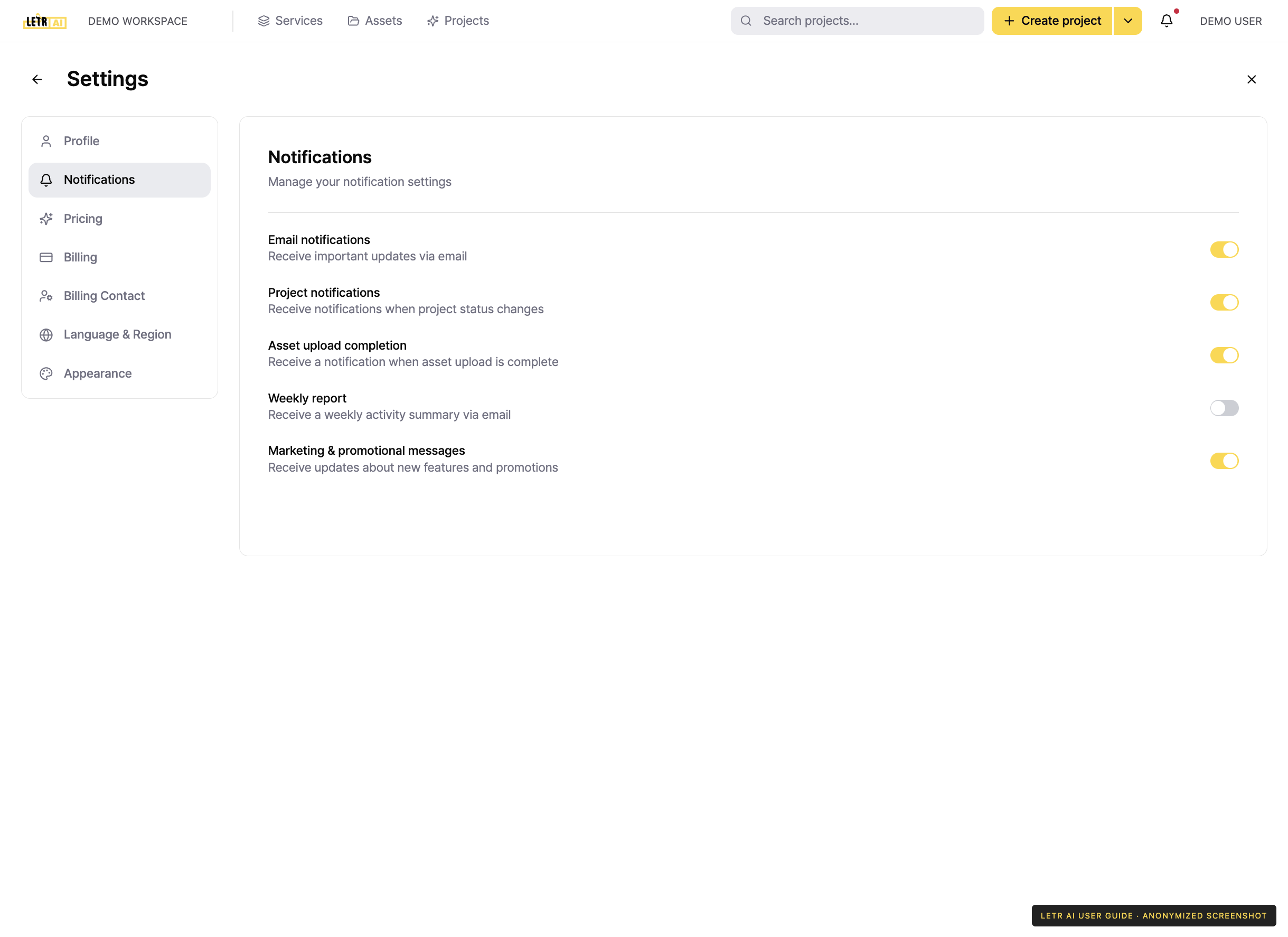
Turn each kind of notification on or off.
| Setting | Description |
|---|---|
| Email notifications | Receive important updates via email |
| Project notifications | Receive notifications when project status changes |
| Asset upload completion | Receive a notification when asset upload is complete |
| Weekly report | Receive a weekly activity summary via email |
| Marketing & promotional messages | Receive updates about new features and promotions |
Notifications you have received appear under the bell icon in the global header, or on the notifications screen.
Language & Region#
| Setting | Description |
|---|---|
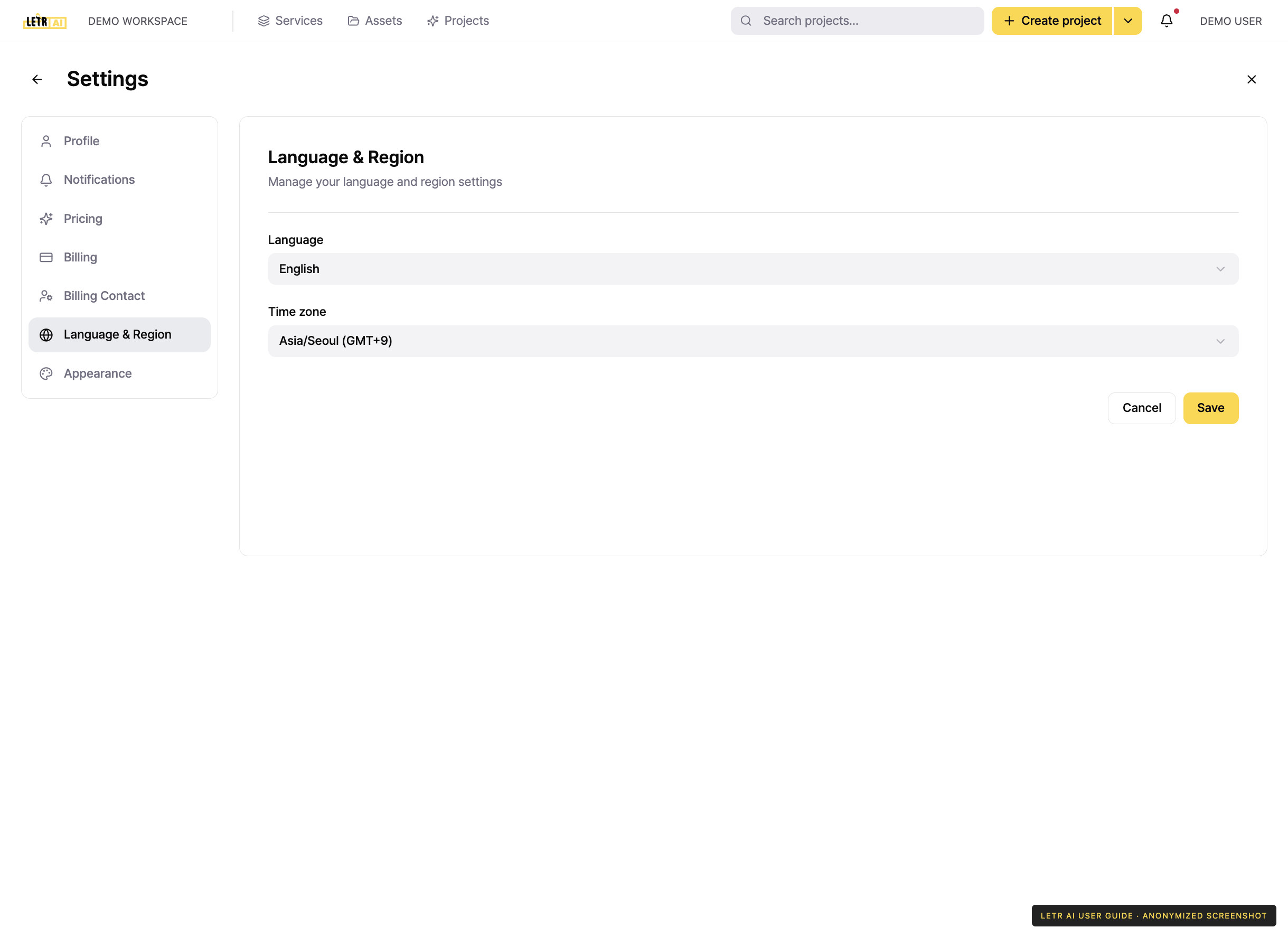
| Language | The interface language |
| Time zone | The zone dates and times are shown in |
The setting is stored on your account, so it applies on every device you sign in from.
Appearance#
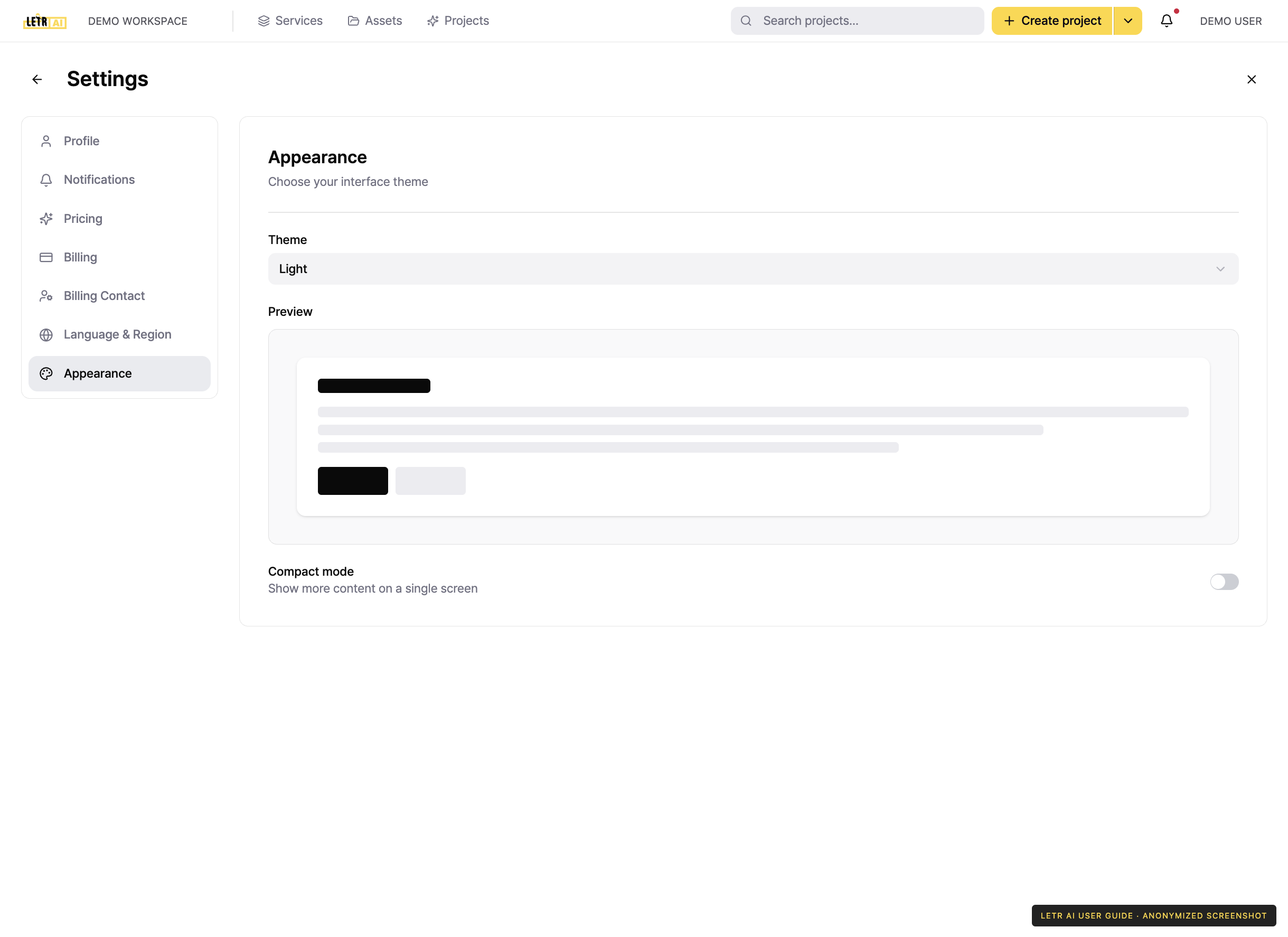
Choose the interface theme — Light, Dark, or Follow system. The Preview shows what you picked.
Compact mode reduces spacing to show more content on a single screen.
Account and contact details in screenshots are anonymized. Menus may vary by role and release.