
Assets overview
Press Assets in the global header to list everything gathered in the workspace.
PRACTICAL EXAMPLE
Learn with an example
Reuse a source without uploading it again
- When to use it
- You want to create work in several languages from a single introductory video.
- What you need
- A source your team may use. The 12-second sample MP4 is available for practice.
- Register the source
Upload the file in Assets. Do not upload another copy if it is already registered.
- Check readiness
Check its name and type, and wait for any required processing to finish.
- Choose it in a project
Select Workspace assets at the Source step when creating a project.
- Set each job's options
Reuse the same asset, but check the required language and options for each project.
One registered source can be used in several projects.
Screen and feature reference
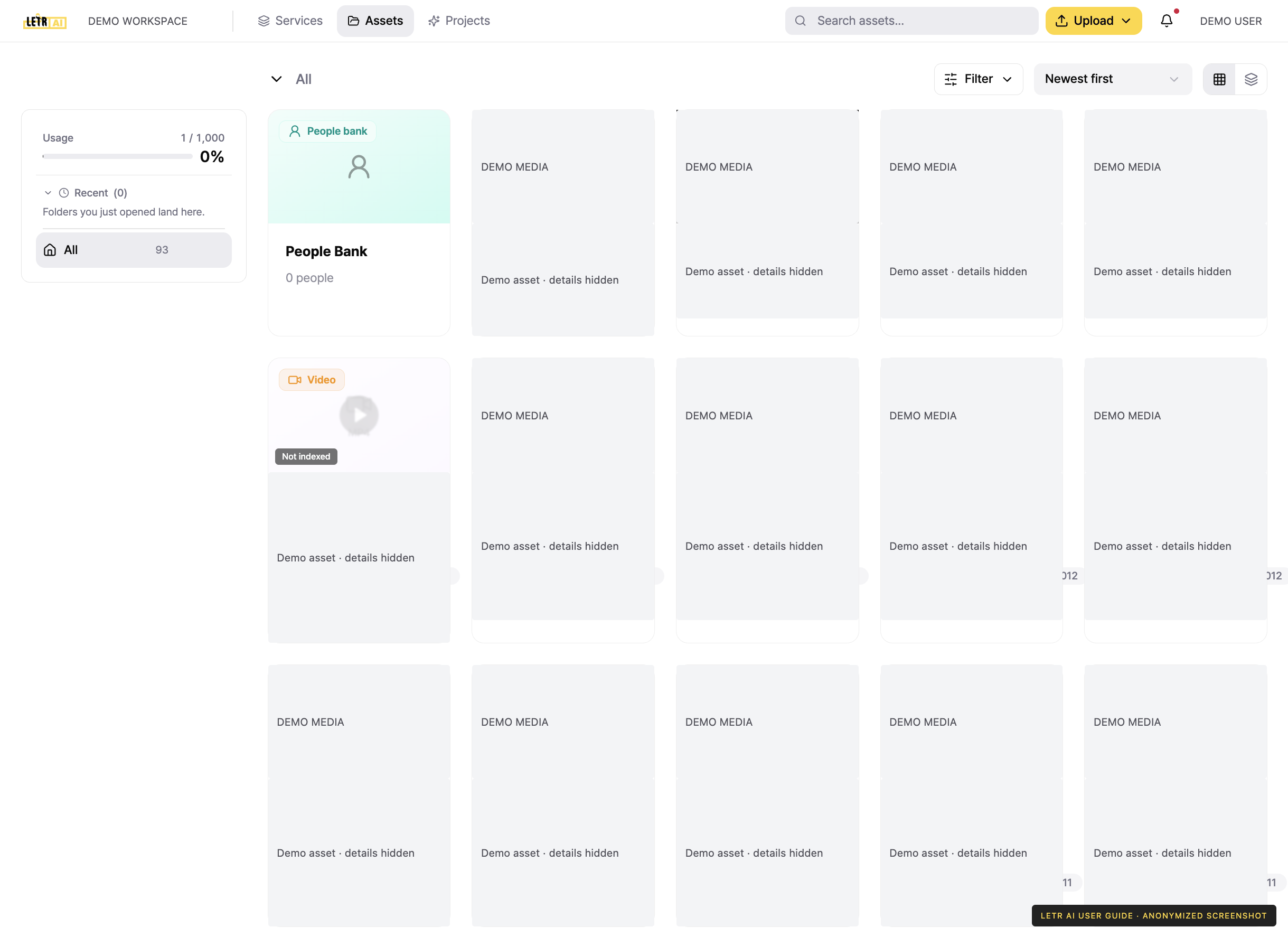
The screen#
| Area | Description |
|---|---|
| Left sidebar | This cycle's usage, recently opened folders, and the total asset count |
| Top right | Search, Upload, Filter, sort, view toggle |
| Center | Asset cards, with the People Bank card first |
Uploading#
Use Upload at the top right to register files. Registered files can be picked directly as Workspace assets when creating a project.
Filtering and sorting#
Filter narrows the list by file type.
| File type |
|---|
| Image · Video · Document · Audio |
| Translation memory |
| Glossary |
| Dataset |
Choose a sort order such as Newest first, and use the icons at the far right to switch between card and list view.
Asset status#
A badge on the card tells you whether the asset is ready.
- Indexing… — the uploaded file is being turned into an asset. It can be used as a project source once this finishes.
- Not indexed — not yet indexed for search and matching.
Cards also show the filename, size, and when the asset was registered.
Who can manage assets#
Owners and admins can create, edit, and delete every asset. Members with the User role can manage only the items they were granted in workspace settings. Even without those permissions, everyone can still use assets while working.
See Permissions for details.
Account and contact details in screenshots are anonymized. Menus may vary by role and release.