Integrations
Connecting an external app lets you pull files from it directly as project sources.
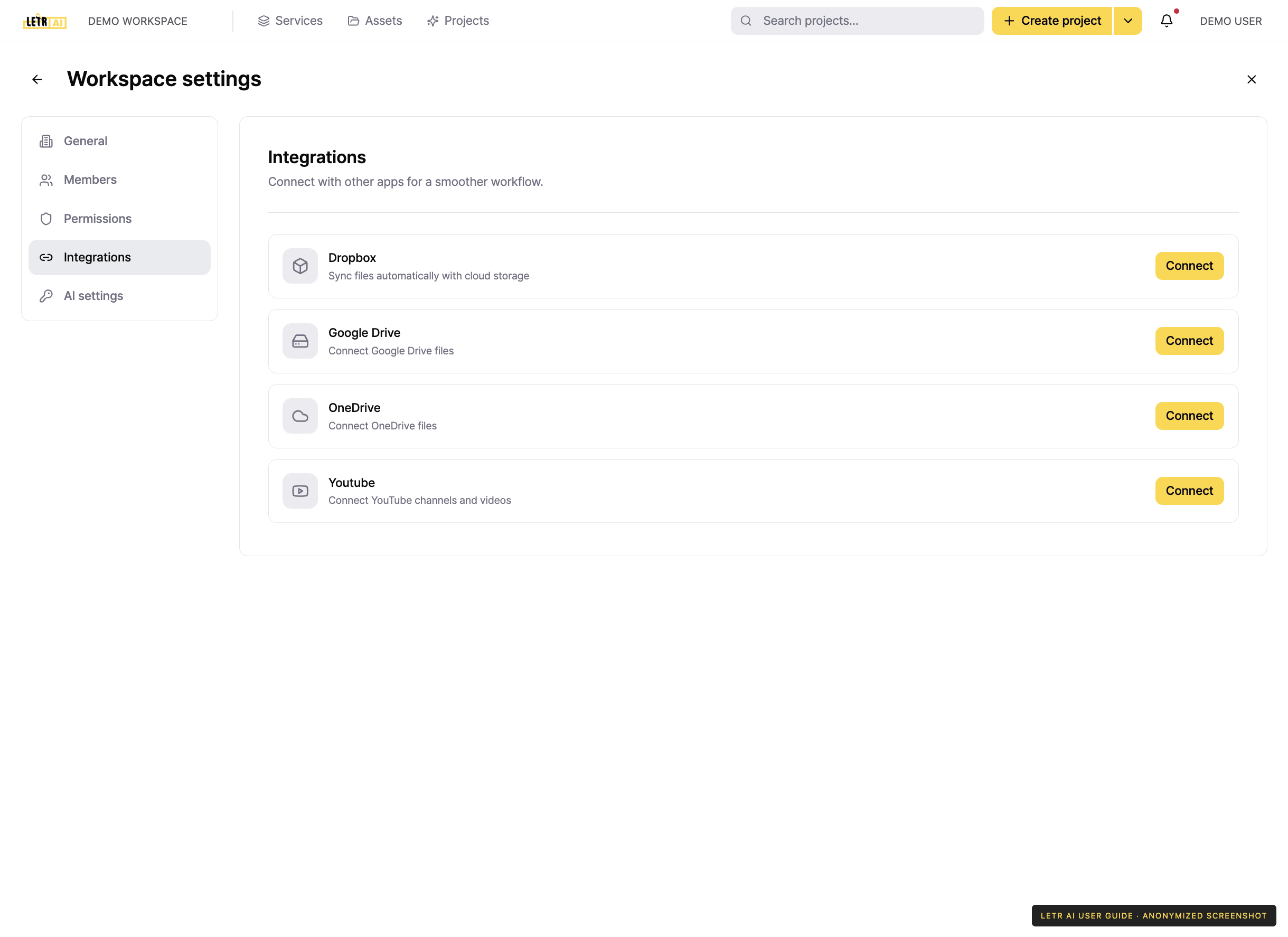
Apps you can connect#
| App | Description |
|---|---|
| Dropbox | Sync files automatically through cloud storage |
| Google Drive | Connect Google Drive files |
| OneDrive | Connect OneDrive files |
| YouTube | Connect YouTube channels and videos |
Connecting an account#
- Go to Workspace settings > Integrations.
- Press the connect button to the right of the app.
- Sign in on the app's window and approve the permissions LETR WORKS requests.
- Once approved, the connected account appears in the list.
The consent flow differs slightly per app.
- Google Drive · YouTube — sign in with your Google account, check all requested permissions, and press Continue.
- Dropbox — sign in to Dropbox, press Continue, then Allow.
- OneDrive — sign in with your Microsoft account and press Accept.
Disconnecting#
Press the disconnect button next to the account in the list and confirm. A disconnected account can be reconnected at any time.
Using a connected app#
Once connected, the External integration option on step 2 (Source) of project creation lets you pick files from that app.
Account and contact details in screenshots are anonymized. Menus may vary by role and release.