
Managing projects
Press Projects in the global header to list every project in the workspace.
PRACTICAL EXAMPLE
Learn with an example
Find only your team's active video translations
- When to use it
- There are many projects and you need to find today's review work quickly.
- What you need
- Access to the folder or group containing the work
- Choose a scope
Select the relevant folder or group in the left tree.
- Combine filters
Combine In progress, Video, and Translation filters.
- Confirm the job
Use name search and sorting, then check languages and assignees.
- Review and reset
Open a ready project. Reset remaining filters before looking for a different kind of work.
You see a focused list of relevant video translations within your permitted scope.
Screen and feature reference
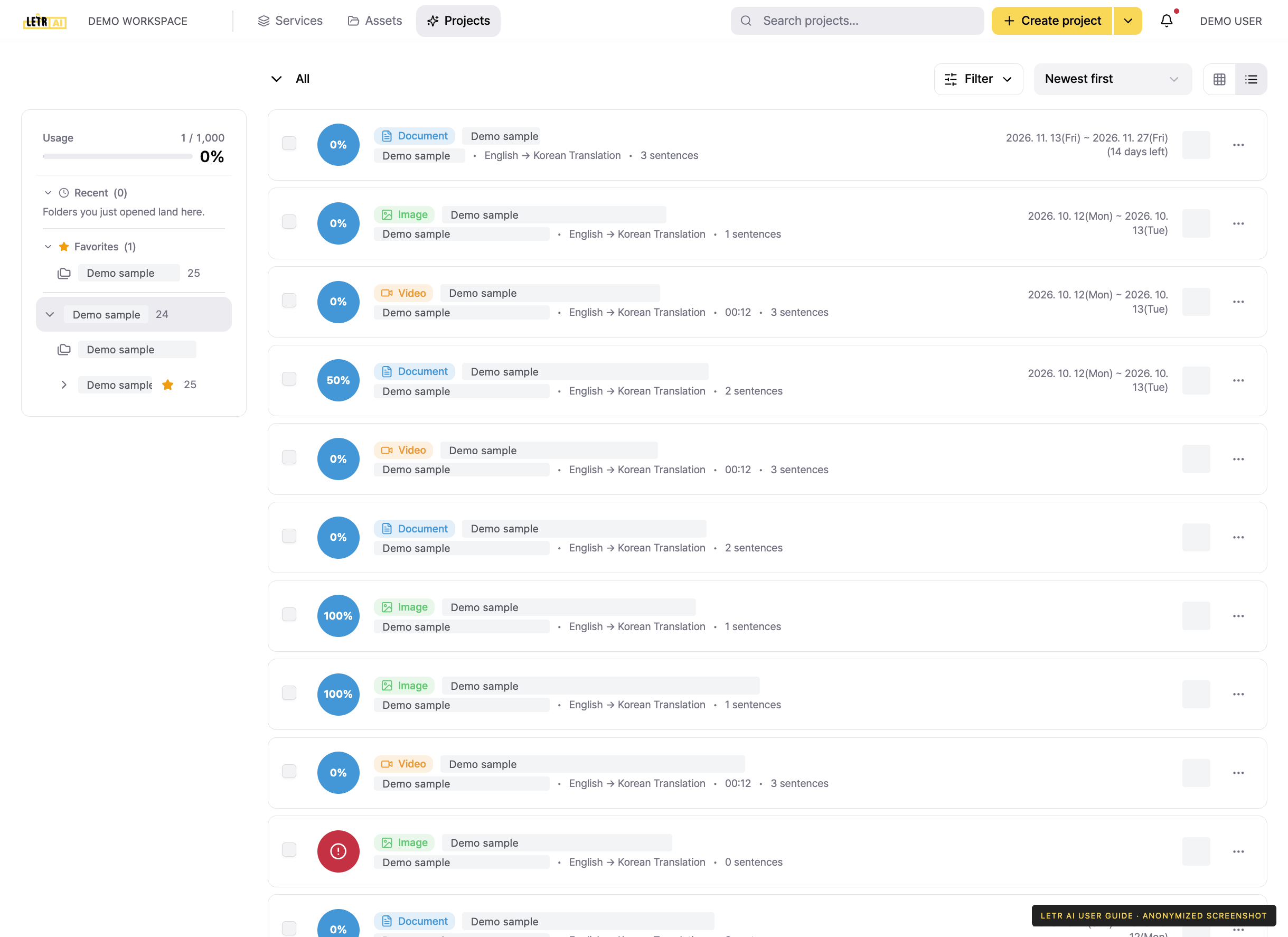
The screen#
| Area | Description |
|---|---|
| Left sidebar | This cycle's usage, and the folder/group tree |
| Breadcrumb | Where you are (All > folder > group) |
| Filter | Narrow by status, content type, and category |
| Sort | Sort order, such as Newest first |
| View toggle | Switch between card and list view at the top right |
Folders and groups#
Projects are organized as workspace > folder > group > project — much like folders on a computer.
Selecting a folder or group in the left tree shows only the projects beneath it. The number beside each entry is how many projects it contains.
Favorites and Recent#
Above the tree the sidebar keeps Recent and Favorites apart. They are what stops the tree from becoming a maze as folders pile up.
- Recent — folders you just opened land here.
- Favorites — click ☆ on a folder to keep it here. The folder menu's Add to favorites / Remove from favorites does the same.
With many folders, narrow the sidebar with Search folders. The filter also offers Favorites only and Empty only.
Sorting and reordering#
| Sort | Description |
|---|---|
| Saved order | The order you arranged by hand |
| Name | Alphabetical |
| Most items | Folders holding the most projects first |
In Saved order, the folder menu moves items up, down, to top, and to bottom.
Creating and moving folders#
The folder menu holds Add folder, Add group, Rename, and Move to another folder. Select several to move or delete them together.
Filtering#
Press Filter to stack conditions and narrow the list.
| Filter | Options |
|---|---|
| Project status | In progress, Completed |
| Content type | Document, Video, Image |
| Category | Transcription, Translation, Review, Dubbing, Subtitle sync |
Press Reset to clear the conditions. To find something by name, use the search box in the middle of the global header.
Reading a row#
Each project row shows:
- Status (Waiting, In progress, Completed, and so on)
- Content type badge (Document · Video · Image)
- Project name and source filename
- Source → target language, and sentence count
- Creation date and owner
Opening a project#
Click a row to open its editor. The more (⋯) button at the far right collects project actions such as download, complete, and delete.
Account and contact details in screenshots are anonymized. Menus may vary by role and release.