
Shared editor features
The frame is the same whatever the content type. The screen centers on a sentence list pairing source and translation, with a toolbar above it.
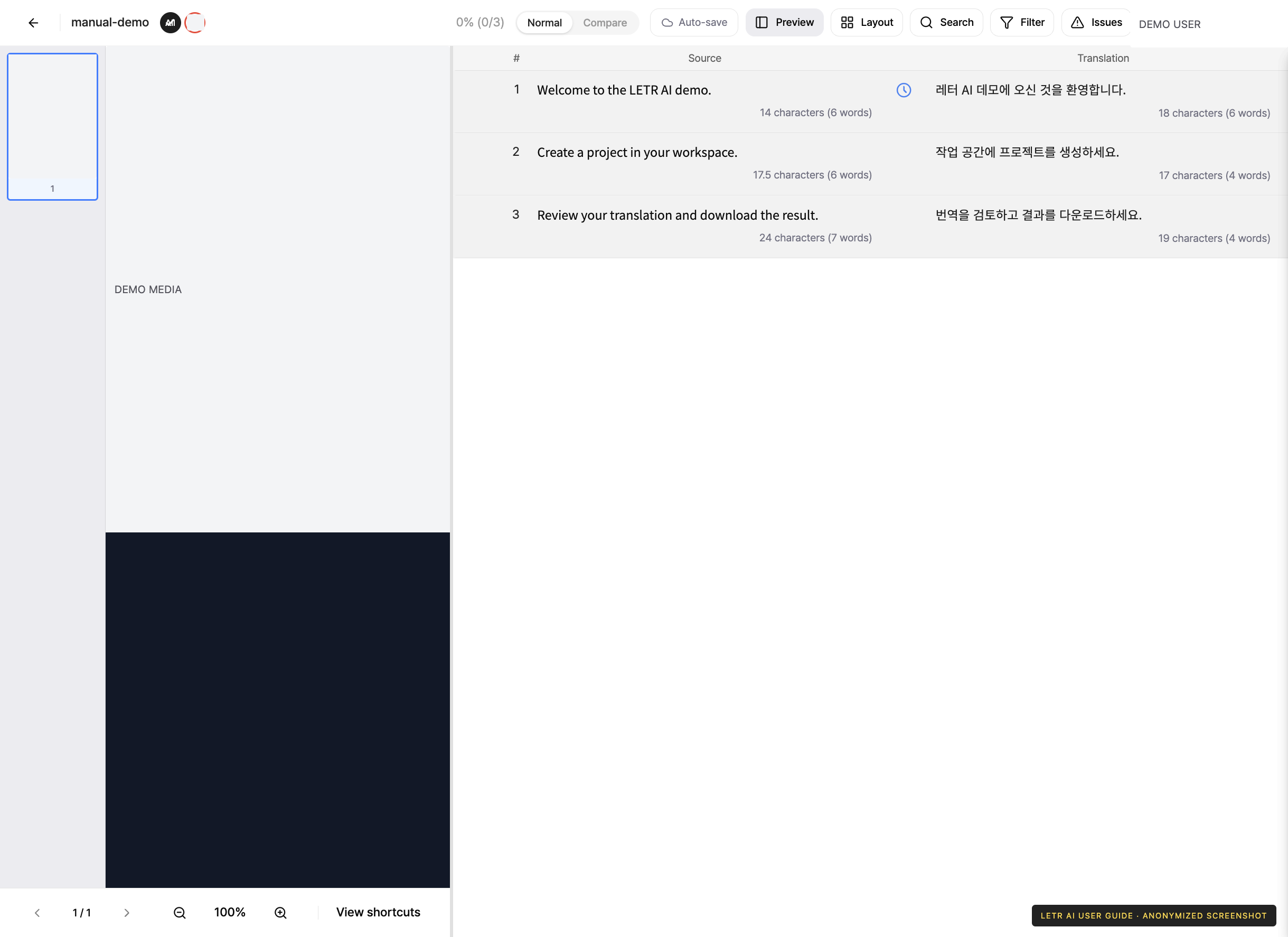
Toolbar#
| Button | What it does |
|---|---|
| Layout | Change how the panels are arranged |
| Search | Find sentences and replace text in batch |
| Filter | Show only the sentences that match |
| Issues | Raise and review issues on sentences |
| Manage | Project information, work assignment, and history |
The project name sits at the top left, and overall progress (for example 0% (0/28)) in the middle.
Search and replace#
Search opens a panel on the right.
- Enter a search term and choose whether to look in Source or Translation.
- Turn on Case sensitive to distinguish upper and lower case.
- Replace what you found across the project in one pass.
Filter#
Filter narrows the list to what you want to see right now.
| Condition | Options |
|---|---|
| Sentence status | Not started, In progress, Issue, Warning, Completed |
| Worker | The person assigned to the sentence |
Press Reset filters to clear the conditions.
Save status#
The editor auto-saves. Edits are saved when you leave a sentence. Where it stands shows next to the toolbar.
| Indicator | Meaning |
|---|---|
| Auto-save | Nothing pending |
| Saving… | On its way to the server |
| Saved (time) | When the last save succeeded |
| Save failed | Some changes could not be saved to the server |
Sentence status icons#
An icon beside each sentence shows where it stands.
- Green check — source/translation work complete
- Orange exclamation — a rule is not met (subtitle length, display time, and so on)
- Red exclamation — work not finished
Issues#
When a sentence needs discussion, raise an issue on it. The Issues button collects them in one place, and they can be resolved when settled.
Excluding text from translation#
Wrap anything that must stay as-is in double curly braces.
{{do not translate}}
Words or regions marked this way are skipped during translation and left exactly as they are.
Account and contact details in screenshots are anonymized. Menus may vary by role and release.