
Document editor
Document projects put source and translation side by side, sentence by sentence.
PRACTICAL EXAMPLE
Learn with an example
Edit one translation and check that it saved
- When to use it
- You want to replace an automatic translation with natural wording your team prefers.
- What you need
- A document project created from the three-sentence sample and translation editing permission
- Activate the sentence
Click the first target sentence. It may appear read-only before being activated.
- Edit the wording
For “Welcome to the LETR AI demo.”, enter “레터 AI 데모에 오신 것을 환영합니다.” as the target.
- Wait for saving
Move to another sentence or view and check the automatic-save indicator.
- Reopen and check
Return to the project list, reopen the same document, and confirm the edited sentence remains.
Source: Welcome to the LETR AI demo.
Edited target: 레터 AI 데모에 오신 것을 환영합니다.
The edited sentence remains after reopening. This edit-and-reopen workflow was checked with the actual sample.
Screen and feature reference
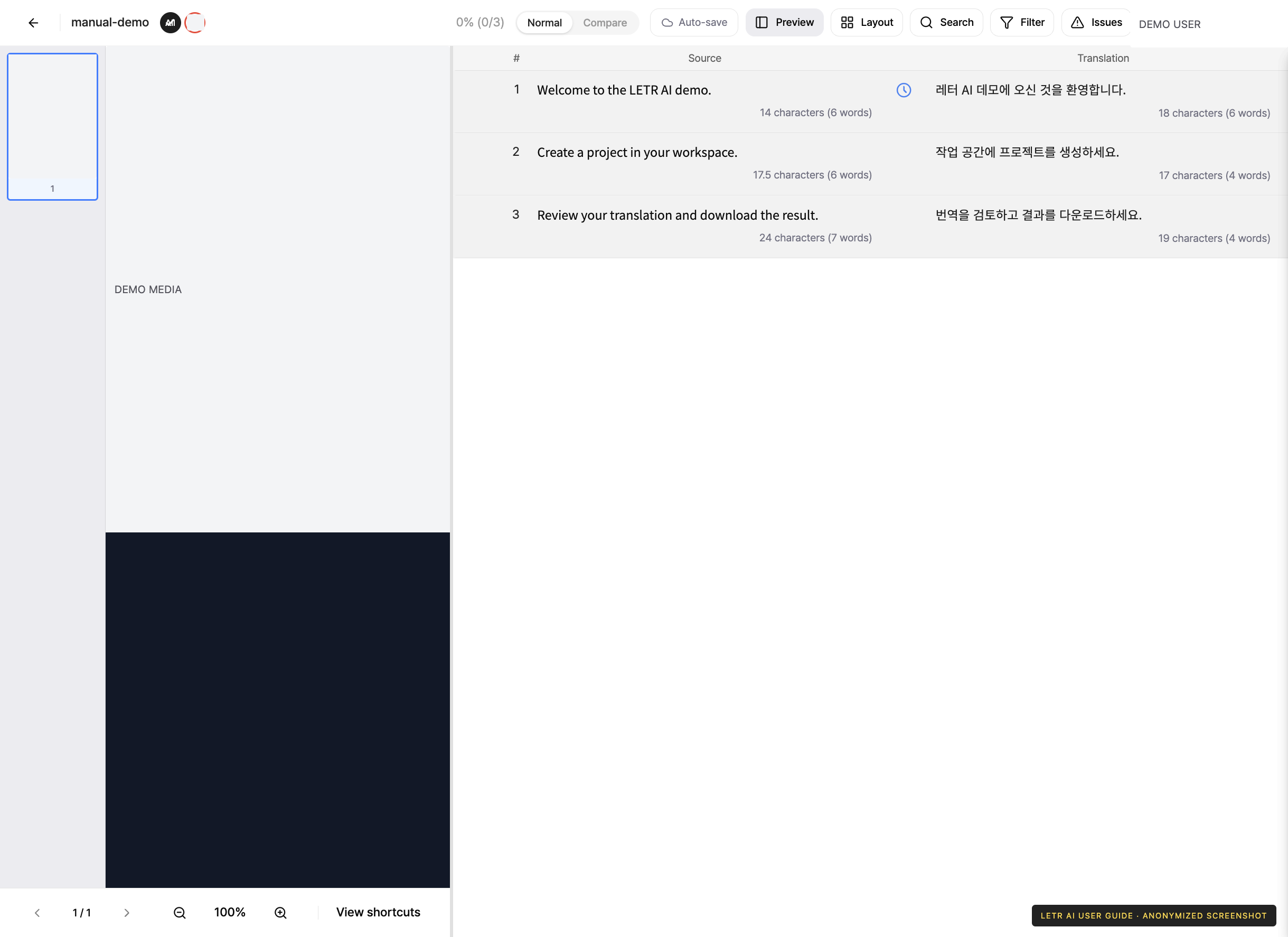
View modes#
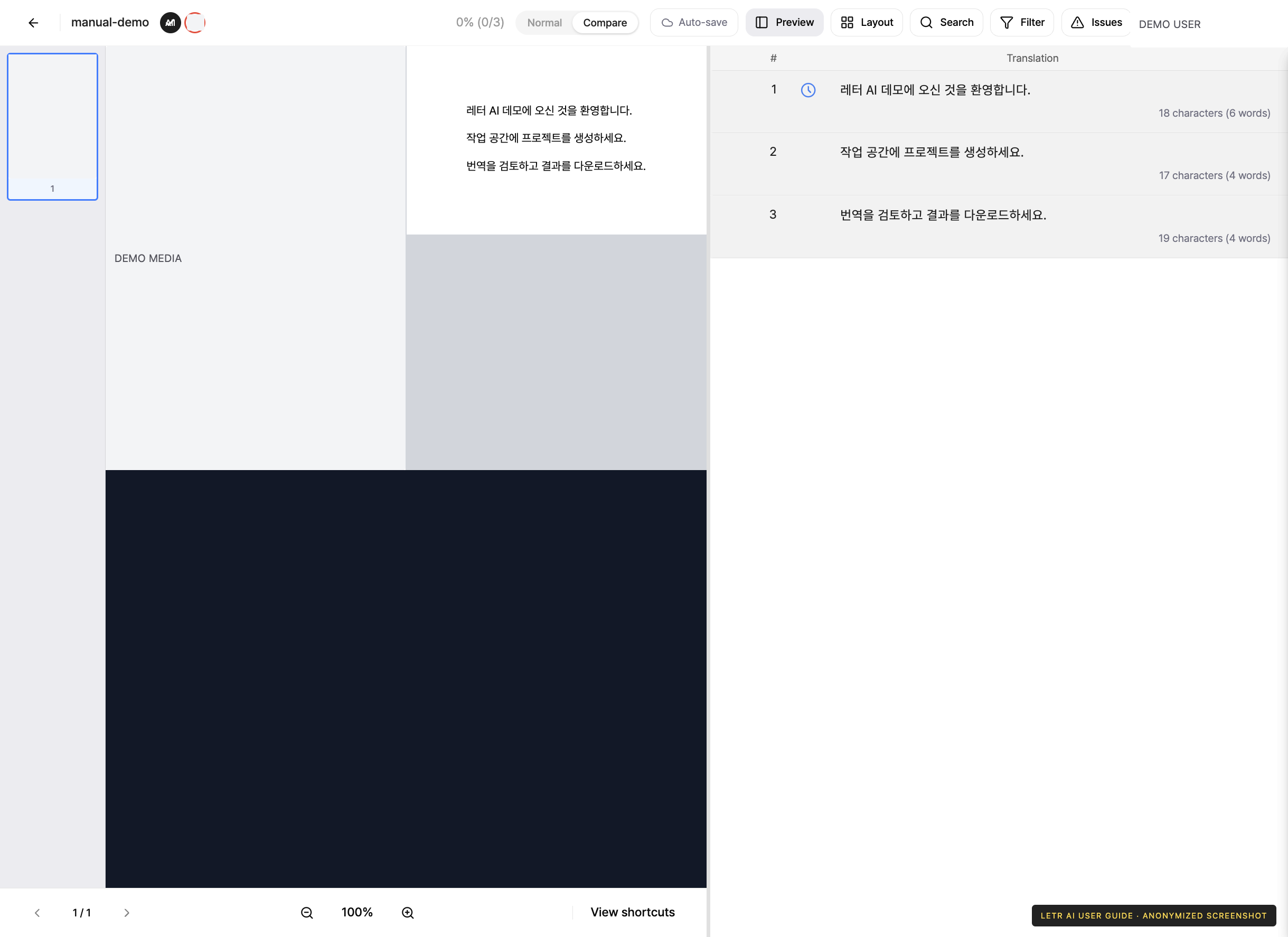
The document editor offers three views at the top left.
| Mode | Description |
|---|---|
| Normal mode | Work through the sentence list filling in translations |
| Compare mode | Put source and translation side by side to compare |
| Preview | See what the finished result will look like |
Working through a document#
- Read the source on the left. Click the translation sentence to activate it before typing. Inactive sentences can appear read-only.
- Mark the sentence complete when done.
- Watch the progress indicator at the top for how much is left.
Edits save automatically when you leave a sentence for another sentence or view. Check the save feedback before closing the editor. Use the three sentences in the sample files to practice creation and editing.
What helps you translate#
- Glossary (TB) — checks the agreed wording inside the sentence. Green when both the source and the translation match the rule; red when the translation is missing or different.
- Translation memory (TM) — suggests translations accumulated from earlier work, and shows which project each came from.
- Machine translation (MT) — suggests an automatic translation.
Excluding text from translation#
Wrap anything that should stay as-is in double curly braces.
{{do not translate}}
Account and contact details in screenshots are anonymized. Menus may vary by role and release.